Can Canva restore old photos? Yes for cleanup, no for reconstruction
Canva is a design tool that has grown a set of photo tools, including a Restore Old Photos app inside its own editor. It is the best place on the internet to turn a repaired scan into an album page, a memorial card or a framed print layout. It is not a restoration engine.
No credit card required. Your photo is deleted from storage within 30 days.
What Canva actually ships matters here, because the marketing and the toolset do not always line up. There is an app in Canva's panel called Restore Old Photos: upload, press Restore, drag the slider to see before and after, add the result to your design. Around it sit Magic Edit and Magic Expand behind the Pro plan, an AI upscaler, a colouriser and the rest of Magic Studio — all of it drawing on one shared monthly AI allowance that varies by plan, with limited access to the standard and premium AI tools on the free tier.
Most of what those tools do to an old print is a cleanup pass: denoise, sharpen, balance colour, and generative fill that you brush in yourself. The last one is the interesting one. Brush over a crease and Canva's Magic Edit replaces it with content generated from your description of what should be there. That is a legitimate tool and a different operation from repair: the model supplies what it thinks belongs in the gap, rather than rebuilding the structure that surrounds it. Canva's own help is candid about the limit on badly degraded originals, noting that extreme fading, damage or low quality will affect the quality and accuracy of the result.
Where Canva is genuinely unbeatable is the step after restoration, which is the step most restoration tools ignore. A restored photograph on its own is a file. In Canva it becomes the photo book with the years set in type, the order-of-service card, the wall print with the names underneath — and you can lay out forty of them in an evening. If your project ends in an album, doing the repair somewhere built for repair and the design here is the natural division of labour.
What cleanup recovers, and what it must invent
Old prints fail in two ways: surface damage that can be removed, and structure that has to be rebuilt. The first pair is the case that flatters a cleanup tool. The second is the case that separates repairing from guessing.
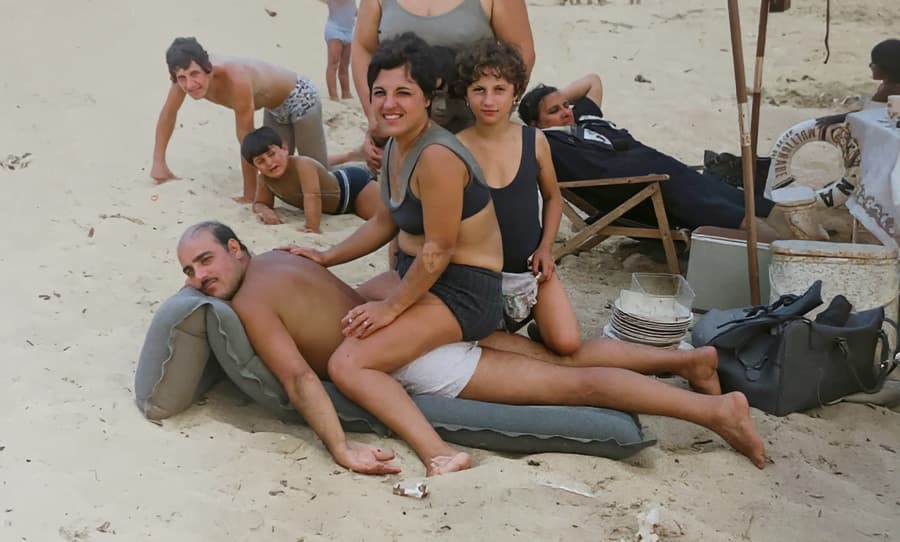
Surface damage, removed
Scratches, spotting and a curved score across the print, cleaned away while the scene underneath stays exactly where it was. This is the kind of fix a cleanup pass does well — and the kind of file that is then ready for an album layout.
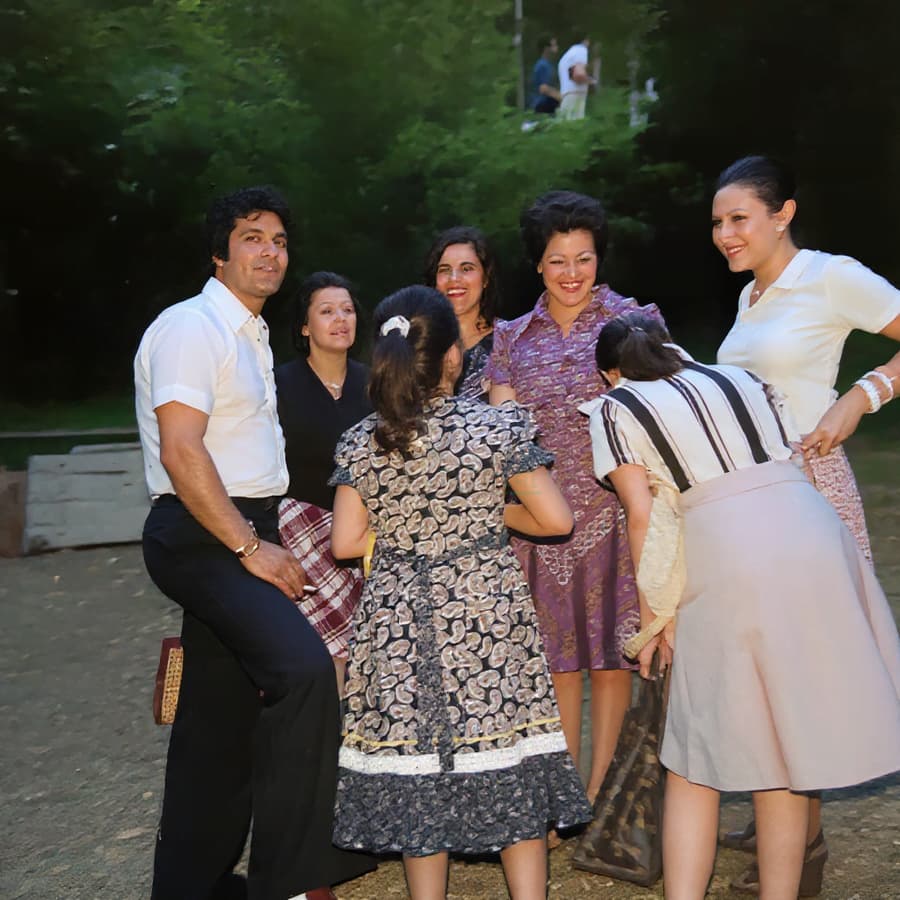
Structure rebuilt from the print itself
Forty years of dust and a hard crease through a portrait, repaired from the structure around it rather than painted over. Both faces are the faces on the print: nothing here was generated, which is what makes it usable in a family record.
A design tool wearing a restorer's coat
Two different operations hide behind one reassuring word. The one-click Restore app is a cleanup model; Magic Edit's brushing is generative fill that invents the area. The second is what people reach for on a tear, where it is the wrong tool.
Retouching is brush work. The healing tools need a stroke per speck, and a box of forty prints turns into an evening per album page — before you have started the layout you actually came for.
Content-aware healing samples from the photograph, and an aged photograph is aged everywhere. Patched from a neighbouring area, a scratch across a faded dress becomes a smeared patch of the same fading, which is why real restoration rebuilds from structure rather than copying nearby pixels.
The AI upscaler adds pixels to a small scan; on a print that is already soft, the model supplies as much as it recovers. Canva's own help warns that a badly damaged or heavily faded original will limit the accuracy of the restored result.
Everything shares one monthly AI allowance that resets, and the free tier gets limited access to the standard and premium tools. A whole album of AI work runs into a plan question sooner than people expect.
The tools have no idea what a face is. Sharpening and denoising flatter a legible face and quietly invent detail on a degraded one, with no warning and no way to constrain the result to the original.
The design surface invites you to crop, resize and compress, and the export you put in the album is suddenly not the file you should be keeping. Keep the master, and keep it somewhere that is not a design project.
How to use Canva well on an old photo project
Repair first, lay out second
Scan at the largest sensible size, then have the print repaired while the file is still a photograph: damage rebuilt from its own structure, tone recovered, faces constrained to the original, and pixels built to the size you will print. Only then bring it into Canva, where the job is composition rather than repair.
Judge the result at 100%, not in the design
Inside a layout everything looks good, because a layout is designed to make photographs look good at a glance. Open the restored file on its own, zoomed to 100%, and check the eyes and the fine lettering. If a face has been smoothed into plausibility, that is a decision to make deliberately rather than discover at the printer.
Keep the master file separate from the design
Export the Canva project for what it is — a design, at design sizes. Keep the repaired full-resolution file as the master, named and dated, and put a copy in the archive. The design will be re-exported a dozen times; the master should be written once and never touched again.
Private by design
Auto-deleted in 30 days
50 MB and 8,192 px
The largest photo the uploader accepts
First one is free
No credit card required
Canva and old photos — the honest FAQ
Can Canva restore old photos?
It can clean one up and it will happily lay the result into an album page. Canva ships a Restore Old Photos app inside its editor that removes creases, colour drift and light damage in a click, plus an upscaler, a colouriser and retouching brushes. What it does not have is a reconstruction engine: a tear, a missing corner or a faded face needs the missing structure rebuilt, and the tools that touch those areas generate content rather than recover it.
Is Canva's photo restoration free?
There is a free tier and it is usable, with limits: Magic Edit and Magic Expand sit behind Pro, and every AI tool draws on one shared monthly allowance that varies by plan, with only limited access to the standard and premium tools on the free plan. A single photo is a fair test. A shoebox of family photographs is a plan decision.
Can Canva repair a torn photo?
It can make the tear disappear, and the way it does that is worth knowing: Magic Edit replaces the area you brush with content generated from your description. So the torn sleeve comes back as a plausible sleeve rather than the one in the photograph. For a wall print that may be good enough. For a family record, the original structure is what you were trying to save.
Does Canva upscale old photos?
Yes, using an AI upscaler that can enlarge a photo several times over. On a clean but small scan the result is impressive. On a soft print the model is supplying pixels that were never recorded, and Canva's own help acknowledges that extremely faded or damaged originals limit the accuracy of the result.
Can Canva restore a face in an old photograph?
It will sharpen and smooth one, and on a face that is still legible that is a real improvement. On a face reduced to eighty pixels across, smoothing and sharpening turn into invention, and the model has no constraint tying the result to the person. Compare the eyes at 100% before and after, and treat what you see there as the evidence.
What is the best alternative to Canva for old photos?
A repair pass before the design pass. Have the file restored in place — damage rebuilt from the print's own pixels, faces left as they were, output sized for print — then use Canva for what Canva is best at, which is the album, the card and the layout. Pinin does the repair half, the first restoration is free, and the repaired file drops straight into any Canva project.
Repair the file, then design the album
Canva is the best place to lay out the album. Pinin is where the photograph inside it gets repaired — damage rebuilt from the print, faces left alone, output sized for print. First restoration free, no card required.
Restore your first photo for freeWhere this page sends you next
- Can Picsart restore old photos? — the other creator app with a restore button
- Can Photoshop restore old photos? — what the same hand work looks like in a pro tool
- Can Lightroom restore old photos? — the tone side, and the batch strength
- Can Copilot restore old photos? — an assistant that describes rather than repairs
- Can Midjourney restore old photos? — pure generation, for a photo that is gone
- Can Remini restore old photos? — one-tap enhancement and its face problem
- Free photo restoration — the repair pass, free on your first photo