Loading...
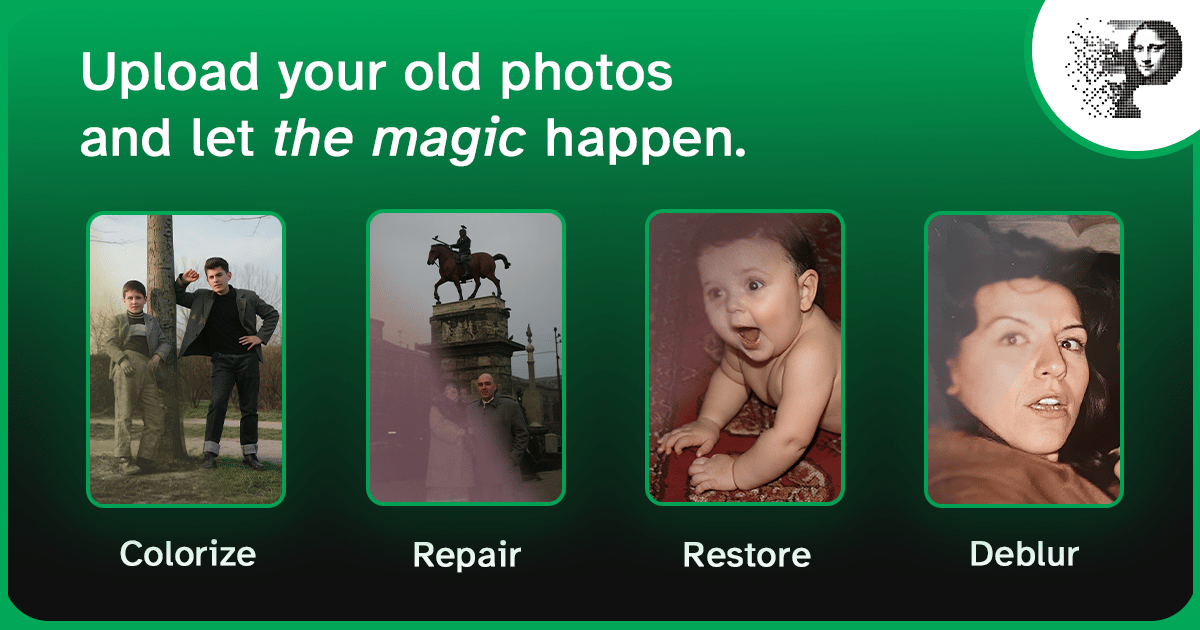
Yes — most water-damaged photos can be restored with AI. Stains, tide lines, bubbling, and fading respond very well to damage repair and white balance engines. The hard limits are physical: photos that are stuck together must be separated first, and damage that removed the image emulsion leaves nothing for the AI to recover.
Water is the most common destroyer of family photos — a flooded basement, a leaky box in the attic, a cup knocked over onto a print. The good news: water rarely erases a photo outright. It stains, warps, and sticks, but the image information usually survives under the damage. That is exactly the kind of partial loss AI restoration handles best.
What water damage actually does to a print
The first step is knowing which of your photos are recoverable. Water damage comes in a handful of distinct forms, and they respond very differently to restoration:
| Damage type | What it looks like | AI restoration result |
|---|---|---|
| Tide lines and staining | Brown or yellow wave-shaped marks across the image | Very good — repair engines remove the stain and rebuild the covered detail |
| Bubbling / emulsion blistering | Raised blisters where the emulsion lifted off the paper | Good — flattened in the scan and filled during damage repair |
| Overall fading and yellowing | The whole print looks washed out or tea-colored | Very good — white balance and contrast engines recover most lost tone |
| Stuck-together photos | Prints fused into a block after drying | Depends — photos must be separated first; AI can only work on what survives |
| Abrasion from drying or handling | Scratched, scuffed surface where emulsion was rubbed away | Moderate — scratch removal helps, but deep gouges leave permanent loss |
| Mold growth on top of water damage | Speckled or fuzzy staining, musty smell | Partial — stains are treatable, but mold eats emulsion and can leave real gaps |
| Dissolved or flaking emulsion | Image visibly peeling, cracked, or missing in patches | Limited — AI can soften the transition, but missing emulsion is missing information |
The pattern in that table is worth internalizing: AI restores photos from the detail your scan contains. Water stains sit on top of the image — they hide detail without destroying it. That hidden detail is recoverable. Damage that destroys the emulsion itself has nothing underneath to recover.
The restoration order that works for water damage
Water-damaged photos need the engines run in a specific order. Running colorization before damage repair, for example, makes the model colorize the stain instead of the photo.
- Separate and dry any stuck photos first. If prints fused into a block, do not force them apart dry. The safest home method: place the block in a freezer, then — working one edge at a time with a thin spatula or dull knife — separate the prints while still cold. Work slowly; losing a corner is better than losing a photo. If the block resists, a photo conservator can separate it with professional equipment.
- Scan flat at 600 DPI, in color, as PNG or TIFF. Bubbling and warp flatten out under scanner glass, which is why a flatbed scan beats a phone photo for water damage. Color mode matters even for black-and-white prints: the stain tones are data the white balance engine needs. The scanning guide covers the full setup.
- Run damage repair first. Scratch and damage removal clears tide lines, stains, and abrasion marks so they don't leak into every later step.
- Run white balance before colorization. Water damage usually pulls the whole print toward yellow or brown. White balance strips that cast; skip it and a colorized result comes back with a permanent tea-colored tint. For black-and-white prints, stop after this step — the photo should already look clean and neutral.
- Colorize only if you want color. Colorization works well on cleaned water-damaged prints. On heavily stained ones it can guess wrong at the stain boundaries — another reason damage repair must come first.
- Upscale last, only if you need a larger print. Upscaling magnifies whatever detail survived. It's the final polish for reprinting, not a repair step.
If a photo comes back looking wrong — waxy faces, muddy midtones — the troubleshooting guide maps each symptom to its cause.
What AI cannot recover
Honesty about limits saves you credits and disappointment:
- Missing emulsion stays missing. Where water (or mold feeding on it) dissolved the image layer, there is no hidden detail to reconstruct. AI can blur the boundary so the loss is less jarring, but the area won't regain faces or features.
- Blocks of fused prints may separate with losses. Expect corner and edge damage on prints that were stuck together for years. Restore what survives; accept the gap.
- Mold holes are real holes. Surface mold staining responds well to cleaning and repair, but mold that ate through the emulsion leaves voids. See the mold damage guide for that specific case.
- Severe abrasion can't be invented back. If a print was rubbed while wet, deep scratches remove detail; repair engines soften them rather than rebuild faces across them.
Within those limits, the success rate is genuinely high — most water-stained photos that scan cleanly come back looking like the water never happened. For badly damaged originals, the getting started guide has a damage-type table that tells you which engines to stack and in what order.
How much does it cost to try?
Restorations run on credits, and your first photo is free — which is the right way to test a water-damaged original: scan it well, run one damage repair pass, and judge the result before spending more. The credits explainer covers how each engine run consumes credits, so you can plan a multi-step restoration without surprises.
FAQ
Can water-damaged photos be saved, or is it too late?
Almost never too late. Staining, fading, and bubbling — the most common water damage — restore very well because the image survives underneath the damage. The genuine losses are dissolved emulsion and photos fused into blocks that separate badly. Scan what you have and test with one restoration before deciding.
How do I separate photos that are stuck together from water?
Freeze the block first, then work a thin spatula or dull knife along one edge while everything is still cold. Cold emulsion is brittle and releases instead of tearing. Never peel dry, stuck prints apart by force, and never soak them — if they won't release, stop and consult a photo conservator. Every print that survives separation, even damaged, is restorable with AI.
Is it safe to scan a photo that smells of mold?
It's safe for the scanner if you wipe the print gently with a dry microfiber cloth first and scan in a ventilated room. Mold spores can spread to other prints and to scanner glass — clean the glass after, and isolate moldy photos in their own sleeve. Light mold staining restores well; surface cleaning before scanning improves the result.
Can AI remove the brown tide lines from a flood photo?
Yes — tide lines are the single most responsive form of water damage. They sit on the surface, so the damage repair engine removes them and reconstructs the detail they cross. Results on typical flood staining are usually indistinguishable from an undamaged print.
Does colorization work on stained black-and-white photos?
Not until the stain is removed. Colorization models take tone cues from the image; a brown water stain reads as invalid color data and produces muddy, wrong-hue results. Run damage repair, then white balance — and only then colorize. On a properly cleaned scan, colorization works as well as on any other print.
Restore your water-damaged photos
Scan flat, repair damage first, then judge. Most stains that look permanent are hiding a fully recoverable photo. Restore a water-damaged photo — your first restoration is free.