Loading...
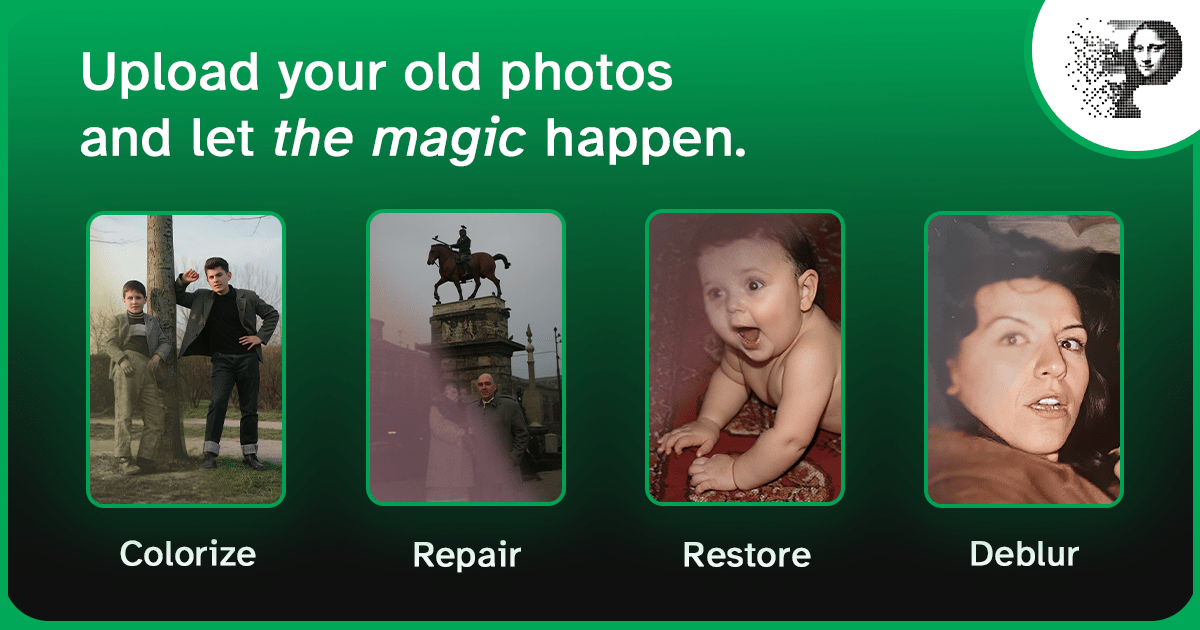
If you have a box of old family photos sitting in a drawer — faded, scratched, or torn — you already know the feeling: these are the only copies of moments that can't be re-shot. The good news is that AI photo restoration has reached the point where a damaged photo can be brought back to life in minutes, without Photoshop skills and without paying a professional retoucher.
This guide walks you through the entire process: what AI restoration can and can't do, which damage types are fixable, how to run your first restoration, and how to get the best possible result.
What AI photo restoration actually does
AI photo restoration uses deep learning models trained on millions of image pairs — damaged and clean versions of the same photo. When you upload a photo, the model analyzes the damage patterns and reconstructs the missing or degraded information:
- It detects scratches, tears, stains, noise, and blur
- It infers what the original pixels probably looked like
- It rebuilds the affected regions while preserving faces, textures, and details
The result is a restored copy that looks natural — not a filter slapped on top.
Good to know: AI restoration works best on photos that are digitized properly. If your source scan is low-resolution or badly lit, the restoration has less information to work with. See our guide to scanning photos for restoration before you start.
What Pinin can fix
Pinin has six specialized restoration engines, each trained for a specific type of damage:
| Engine | Fixes | Best for |
|---|---|---|
| Face Enhancement | Blurry or low-detail faces | Portraits where faces look soft or washed out |
| Colorization | Grayscale photos | Black & white photos from before the 1960s |
| Upscaling | Low resolution | Small prints, newspaper clippings, web images |
| Scratch Removal | Scratches, dust, mold lines | Photos stored in albums or sleeves |
| Blur Removal | Motion blur, out-of-focus blur | Slightly blurred snapshots |
| White Balance | Yellowing, color casts, fading | Photos from the 1970s–90s with warm fading |
Most damaged photos need more than one engine — a faded 1950s portrait might need colorization and scratch removal. Pinin lets you run multiple engines on the same photo, and each restoration costs one credit (see how Pinin credits work).
How the restoration pipeline works
Your first restoration, step by step
- Scan or photograph the photo at 300 DPI or higher — 600 DPI for small prints. If you're working from a phone photo of a print, use even lighting and shoot straight on.
- Open Pinin and upload the image. JPEG, PNG, TIFF, BMP, and RAW are supported.
- Choose the engines you need. Not sure? Start with the damage you can see: scratches → Scratch Removal, gray photo → Colorization, soft faces → Face Enhancement.
- Run the restoration. Most restorations finish in seconds to a minute, depending on image size.
- Compare and download. Pinin keeps the original untouched, so you can always compare before/after and download the restored version in HD or 4K.
Tip: Run the most aggressive fix last. If you plan to colorize and remove scratches, remove scratches first, then colorize — the color model sees cleaner edges and produces more accurate color.
What AI photo restoration is NOT
It's worth being clear about the limits, because a lot of marketing overpromises:
- It does not invent new content. If a face is completely missing, AI cannot reconstruct it from imagination.
- It is not a face-swap or beauty filter. The goal is to recover the original photo, not change who is in it.
- It is not magic for microscopic photos. A 200×150 pixel scan has very little information to work with.
- It does not replace a professional conservator for museum-grade archival work.
When a photo is restorable, Pinin does an impressive job. When it isn't, no tool can help — and we'd rather be honest about that.
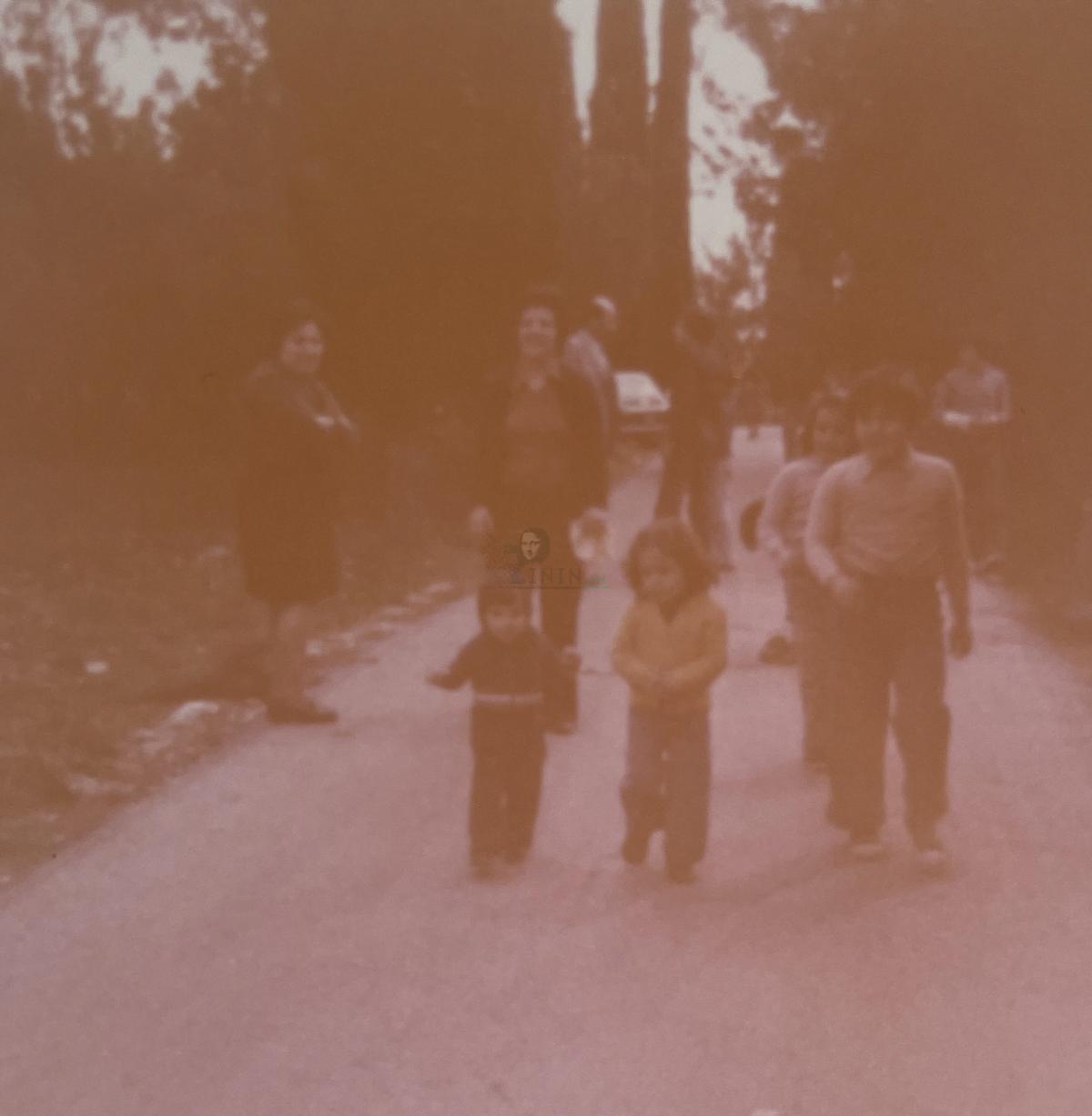
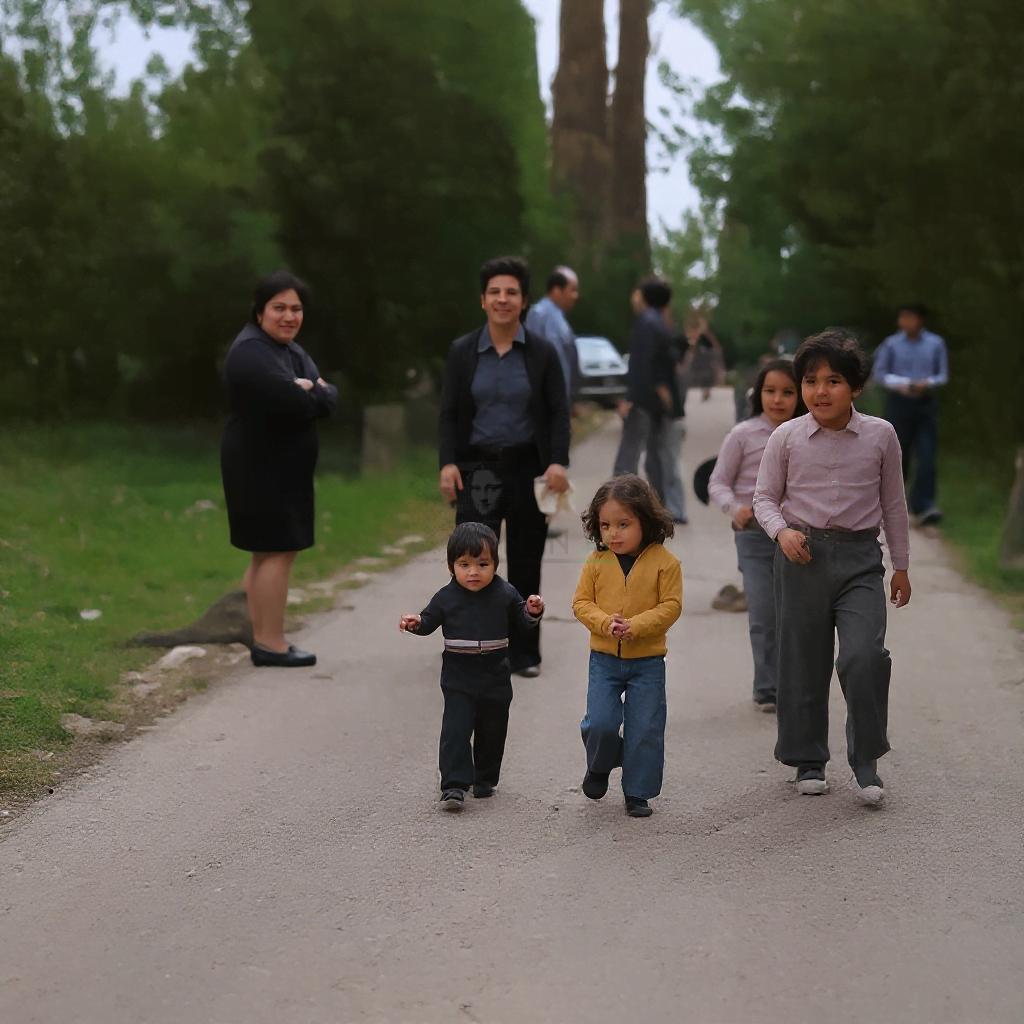
Scan quality matters: DPI by photo size
| Photo size | Minimum DPI | Resulting pixels (approx.) |
|---|---|---|
| 4×6 in (10×15 cm) | 600 DPI | 2,400 × 3,600 |
| 5×7 in (13×18 cm) | 600 DPI | 3,000 × 4,200 |
| 8×10 in (20×25 cm) | 300 DPI | 2,400 × 3,000 |
| 11×14 in (28×36 cm) | 300 DPI | 3,300 × 4,200 |
Save scans as TIFF or high-quality PNG if you can; JPG at quality 90+ is acceptable. Avoid re-compressing the same JPG repeatedly — each generation loses detail.
Privacy and security
Your photos are personal. Pinin processes uploads securely and does not use your photos to train models, and originals are not shared with third parties. You can read the full details in the docs, but the short version is: your family photos stay yours.
Wondering about cost? New users get a free credit — no credit card required — to restore their first photo. After that, restorations cost one credit per engine per photo. See how Pinin credits work or visit our pricing page.
FAQ
Is AI restoration the same as AI upscaling?
No. Upscaling increases resolution — it makes a small image bigger. Restoration repairs damage — scratches, tears, fading, blur. Pinin offers both, and they often work well together (upscale after restoring), but they solve different problems.
Can it fix photos with both scratches and blur?
Yes. Run Scratch Removal first, then Blur Removal (or Face Enhancement for portraits). Each engine is independent, so you can stack them on the same photo, spending one credit per engine.
Does Pinin store or train on my photos?
No. Pinin does not train on user uploads, and your originals are not shared with third parties. Uploads are processed for the restoration and remain private to your account.
What's the difference between the free credit and paid credits?
The free credit is a one-time welcome credit for new users — it lets you restore your first photo without paying and without entering a card. Paid credits come from plans or refill packs and are used the same way (one credit per engine per photo). There's no functional difference in quality; the free credit is simply on us.
Ready to restore your first photo?
If you've got a damaged photo sitting in a drawer, this is the moment. Restore it now → Start your first restoration — free credit included, no card required.