Loading...
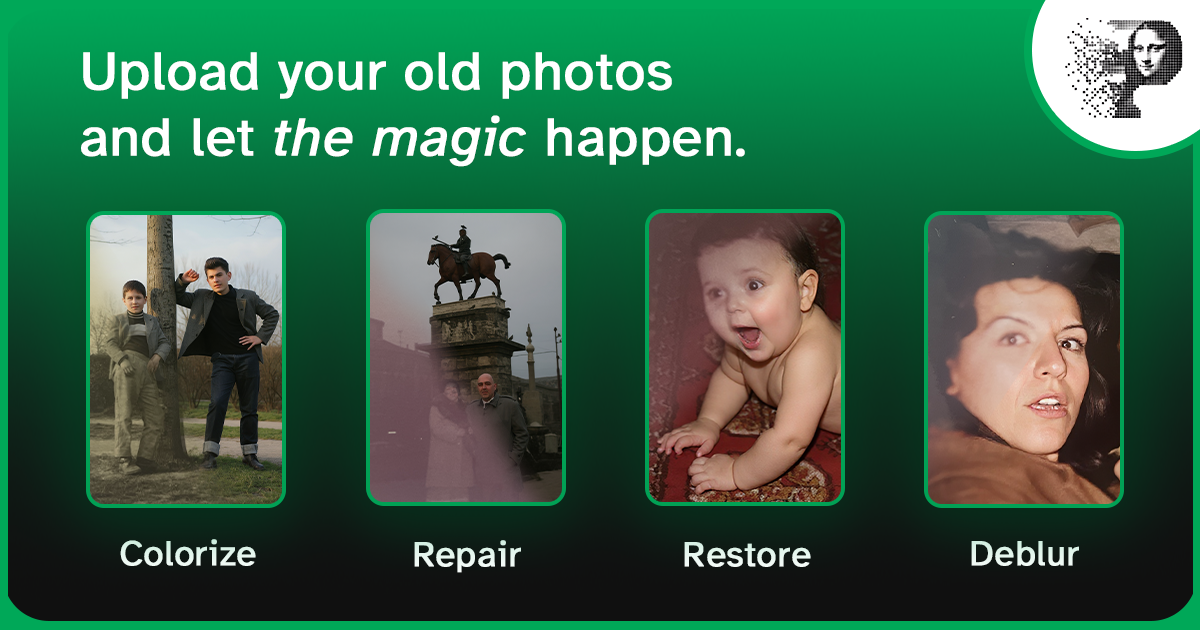
How to Repair Torn Photos with AI — Fix Tears and Rips Without Photoshop
A torn photo is one of the most heartbreaking kinds of damage — the physical print is broken, and every fold or missing piece feels like part of the memory is gone too. The good news: AI photo restoration can repair most tears and rips automatically, and the results are often indistinguishable from an untouched print.
This guide covers what an AI repair actually does, which tears it can and can't fix, and the exact steps to get the best possible result.
Why torn photos are fixable
A tear is a localized defect: the pixels on both sides of the rip are intact, they're just displaced. The AI's job is to:
- Detect the tear boundary and the small wedge of missing pixels along it
- Rebuild the missing strip by inferring what the surrounding texture, lines, and colors imply
- Blend the repair so no seam or blur halo remains
Because the surrounding image gives the model strong clues, tears are among the highest-success-rate repairs — far easier than filling a completely missing face.
Good to know: the bigger the missing area, the harder the repair. A clean rip with both halves present usually restores perfectly. A missing corner of a print needs more inference, and a photo with an entire face torn away may need manual restoration — see the manual option below.
What counts as a "torn" photo
| Damage | AI repair quality | Notes |
|---|---|---|
| Single clean rip, both halves present | Excellent | The classic "torn in half" photo — best case |
| Fold crease with a small tear along it | Excellent | Often fully invisible after repair |
| Missing corner / chunk | Good | AI fills the gap; complex backgrounds may show faint artifacts |
| Multiple rips with missing pieces | Fair | Run repair, then retouch remaining gaps |
| Entire subject torn away (face/body) | Poor | Needs manual restoration or a donor photo |
Step-by-step: repair a torn photo with Pinin
- Scan both pieces — place the torn halves together (don't tape them; just align them) and scan at 600 DPI, or photograph flat with even light.
- Upload to Pinin — go to the AI photo restoration tool and upload the scan. Your first restoration is free.
- Choose the repair mode — select the restoration engine that handles damage. Pinin repairs tears, scratches, and fading in one pass.
- Let the AI rebuild the tear — processing takes roughly 12 seconds. The model reconstructs the missing strip from the surrounding texture.
- Download and inspect — zoom in on the repaired seam. If a faint line remains, run the enhancement engine to blend it further.
Tips for the best repair
- Scan before you repair. A high-resolution source gives the AI more real pixels to work with. 600 DPI is the sweet spot for prints.
- Align the pieces carefully. The closer the torn edges are to their original position, the less the AI has to invent.
- Don't worry about dust on the glass. The repair pass usually removes dust and specks along with the tear.
- Use enhancement afterward. After the tear is closed, one enhancement pass sharpens the rebuilt area so it matches the rest of the photo.
When manual restoration is the right call
If a large part of the subject is missing — say, half of a face or an entire person — the AI has nothing to infer from. In that case, Pinin's manual restoration service pairs you with a human artist who can rebuild the missing area convincingly. It costs more and takes longer, but for irreplaceable photos it's worth it.
FAQ
Can AI repair a photo torn into many pieces? Yes, if you can align the main pieces. The AI treats the assembled scan as one image and rebuilds the seams. Tiny fragments add little information, so focus on the two or three largest pieces.
Will the repair look like a patch? With a clean scan and a single tear, no. The model blends the rebuilt strip with the surrounding texture. On very textured backgrounds (grass, fabric, hair) you may see a faint artifact — a second enhancement pass usually removes it.
Is repairing a torn photo free? Your first restoration on Pinin is free, no credit card required. After that, each restoration costs one credit.
Put it into practice — repair a torn photo now and see the seam disappear.